



Progressive web app

Install EC TECH Client Workspace

Install the public Client Workspace tools and understand Android, iPhone, update and offline behaviour.

Installation checklist

Add the public site to your home screen.

Installation depends on the browser and device. Visit online first, then use the browser's installation option. Launch the saved icon, check the appearance you selected, and test a previously visited public page without a connection. This does not enable production enquiries or external integrations.

Open in a supported browser to check installation eligibility

The install action appears only after the browser confirms that this site is eligible.

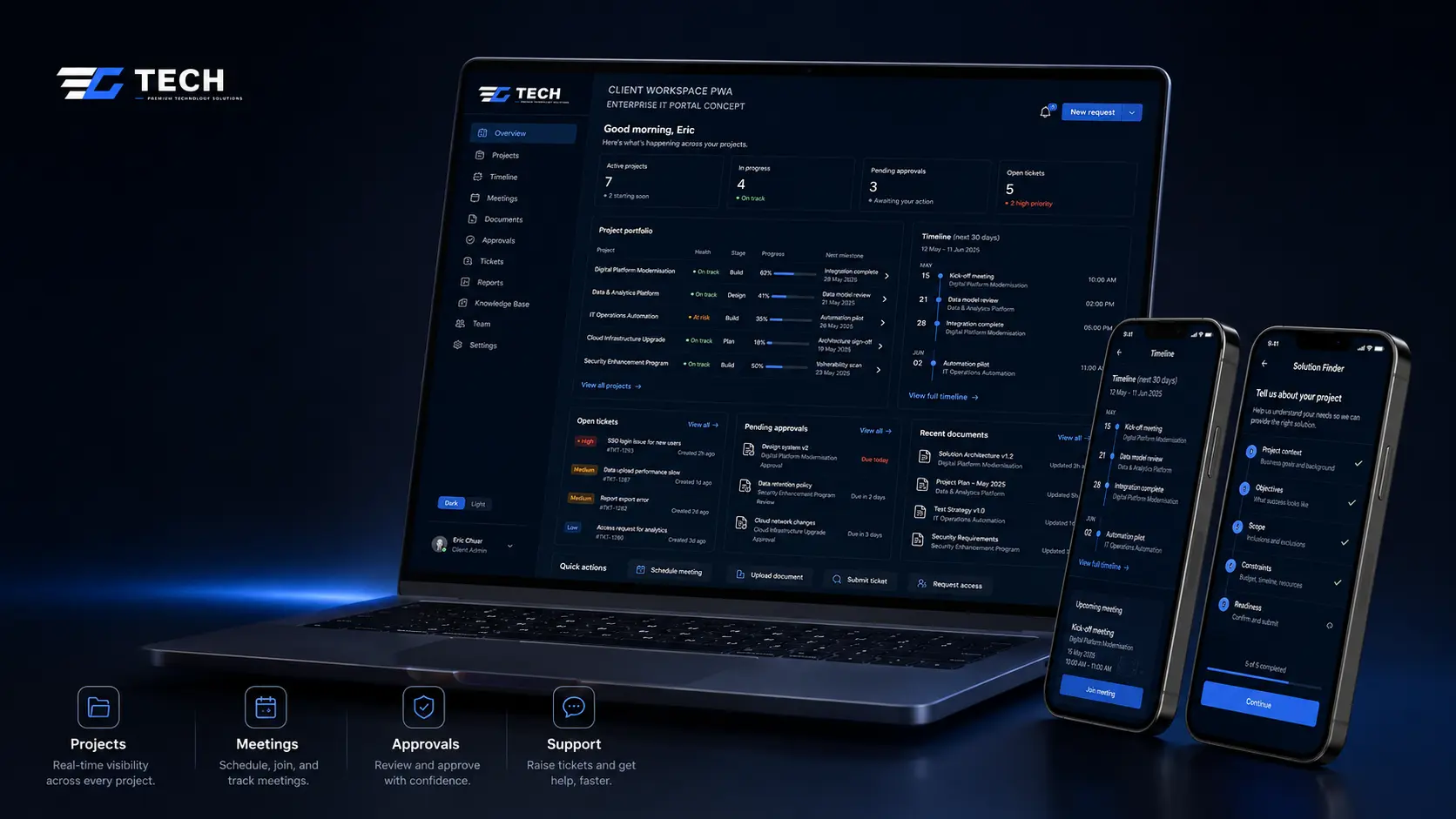
EC TECH Client Workspace installation concept showing the app across laptop and mobile formats
Installation and multi-device design reference. Interface examples are illustrative and contain no client data.

Android and compatible desktop browsers

  1. Open the site online in Chrome or another install-capable browser.
  2. If the browser reports eligibility, use the Install Client Workspace action or browser menu.
  3. Open the installed app and confirm it starts at the Client Workspace.
  4. Revisit after an update and accept the update prompt when it appears.

iPhone and iPad

  1. Open the Client Workspace in Safari while online.
  2. Use Share, then choose Add to Home Screen.
  3. Confirm the EC TECH name and icon, then add it.
  4. Launch from the home screen and check light and dark appearance.

Safe offline boundary

Previously opened public resources and non-personal selections can remain useful offline. Private Client Portal routes, forms, client records, documents, authentication, APIs and submissions are network-only and never cached for offline use.

Guest shortlist data stays on this browser

Project Brief contact details are not queued

Protected portal responses use no-store

Ticket and file submissions fail honestly offline